Installation
Get Manga Translator Z running in your browser in under a minute. All you need is Chrome or a Chromium-based browser.
System Requirements
| Requirement | Details |
|---|---|
| Browser | Google Chrome 110 or newer, Microsoft Edge 110+, Brave, Vivaldi, or any Chromium-based browser with extension support |
| Operating System | Windows, macOS, Linux, or ChromeOS — any OS that runs Chrome |
| Internet | Required for cloud backends (OpenAI Vision, hosted server). Not required for Ollama (local) mode. |
Install from the Chrome Web Store
The easiest way to install Manga Translator Z is from the Chrome Web Store:
- Open the Chrome Web Store listing. Visit the extension page or search for "Manga Translator Z" in the Chrome Web Store.
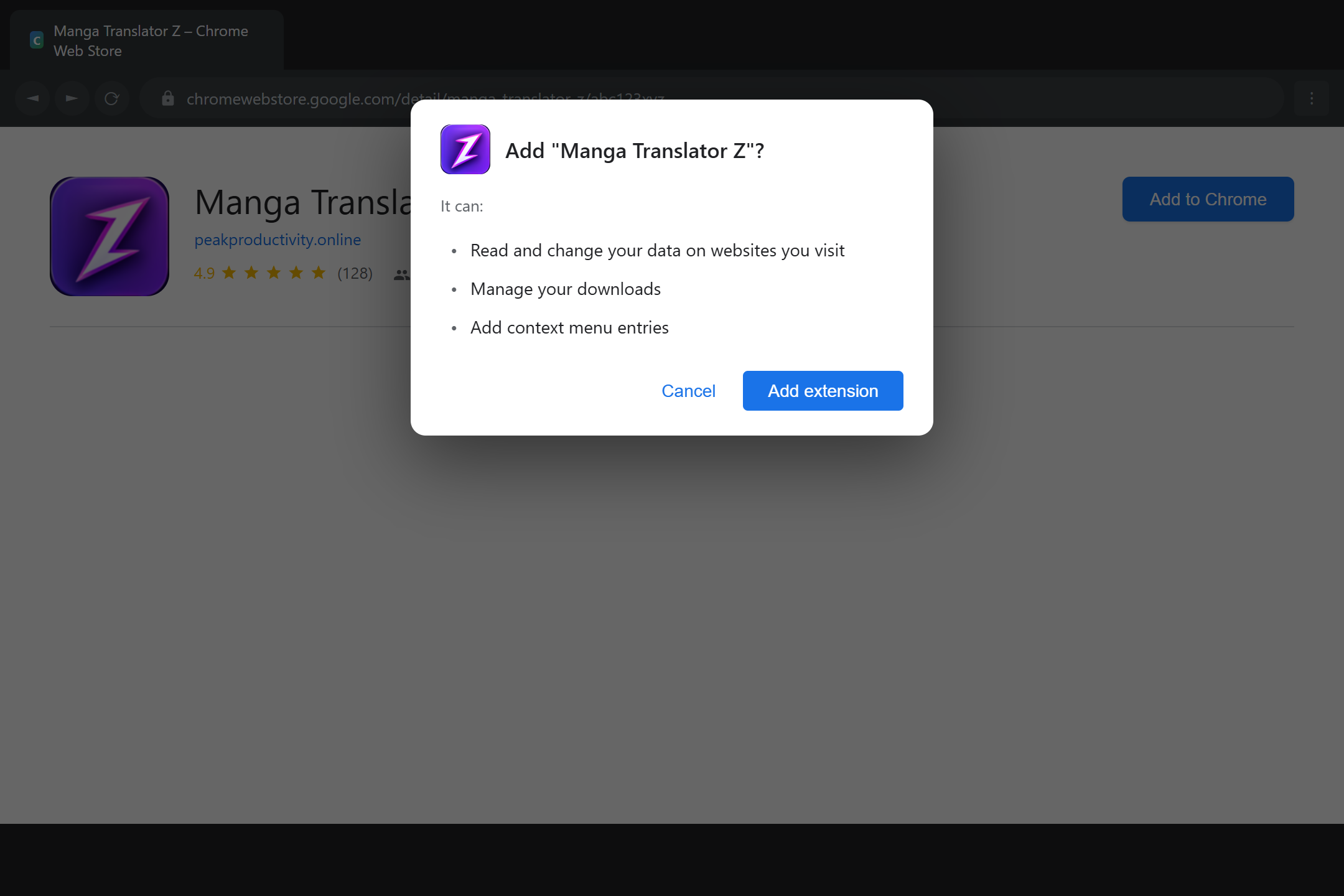
- Click "Add to Chrome". A confirmation dialog will appear showing the permissions the extension needs.
- Confirm the installation. Click "Add extension" in the dialog. The extension icon will appear in your toolbar.
Permissions Explained
Manga Translator Z requests the minimum permissions necessary to function. Here is what each permission does and why it is needed:
| Permission | Purpose |
|---|---|
storage |
Saves your settings (language, font, backend configuration) locally in your browser. No data is sent externally by this permission. |
activeTab |
Allows the extension to access the current tab when you click the extension icon or press T. This is how it reads the manga images on the page you are viewing. |
downloads |
Used to save translated pages as PNG images to your Downloads folder when you press Shift+S or enable auto-save. |
scripting |
Injects the translation overlay and bubble detection code into manga reader pages. This is what makes the translation appear directly on the page. |
contextMenus |
Adds a "Translate this image" option to the right-click context menu for quick translation of individual images. |
The extension does not read your browsing history, track your activity, or collect personal data. Bubble detection runs entirely in your browser using a local ONNX model. Text is only sent to your configured AI backend for translation.
Optional: Site Access for Auto-Translate
By default, the extension uses temporary tab access, which means it activates only when you click the extension icon or press T. This works for on-demand translation.
If you want auto-translate on load (automatically translating every page as you browse a chapter), the extension needs persistent access to that site:
- Open the extension popup while on the manga site.
- Scroll down to the Site Access section in the General tab.
- Click "Enable On This Site".
- Confirm the permission request. This grants access only to the current site origin.
You can always translate on demand with T or the popup button without granting site access. Auto-translate is a convenience feature for binge-reading sessions.
Pin the Extension to Your Toolbar
For quick access, pin the extension icon to your Chrome toolbar:
- Click the puzzle piece icon (Extensions) in the top-right corner of Chrome.
- Find Manga Translator Z in the list.
- Click the pin icon next to it. The extension icon will now stay visible in your toolbar.
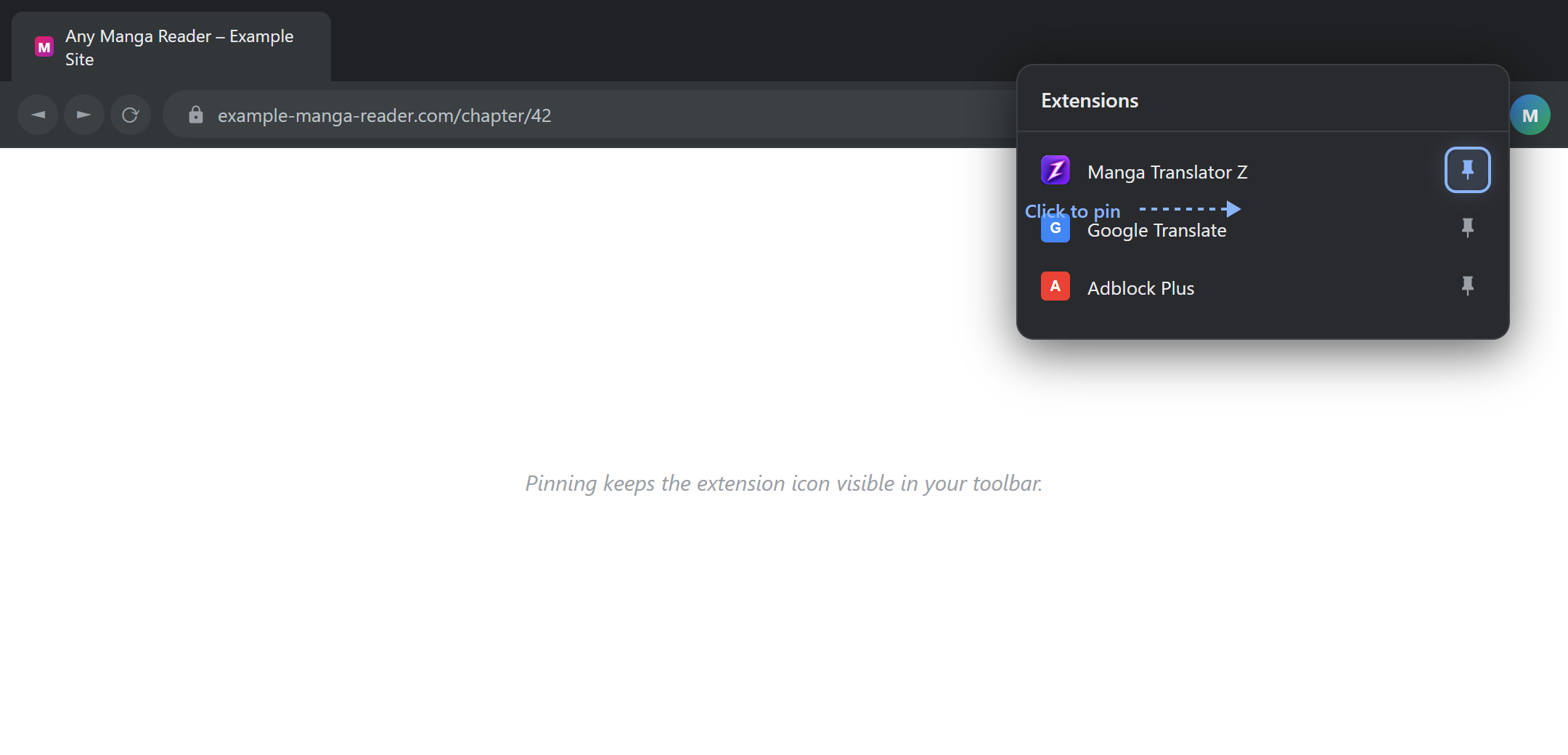
Once pinned, you can click the icon anytime to open the popup, check connection status, adjust settings, or trigger translation.
You can also press T on any manga page to instantly translate it — no need to open the popup.